
Email types
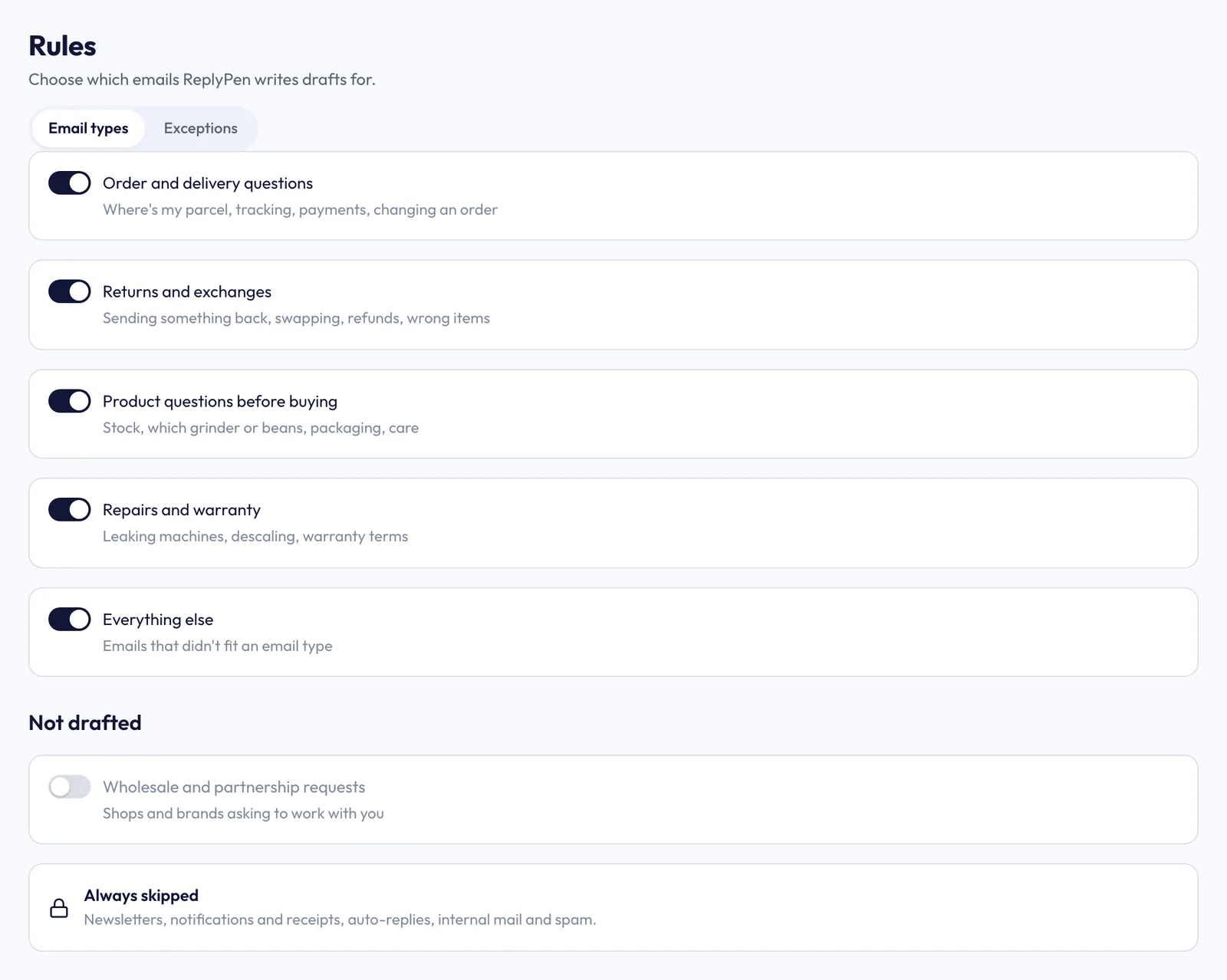
Rules, Email types. The types come from your own inbox.
- Go to Rules, tab Email types.
- Switch a type on to get drafts for it, or off to stop. Types that are off show under Not drafted.
Newsletters, notifications and receipts, auto-replies, internal mail and spam are skipped automatically; the app lists them under Always skipped. Your own exceptions go first, though: an Always draft a reply exception for a whole domain also lets that domain’s newsletters through. If a domain sends bulk mail too, make the exception for a sender address or for words instead.
At least one type stays on. To stop all drafts, pause ReplyPen in Settings, Mailbox; see pause ReplyPen.
Add an exception
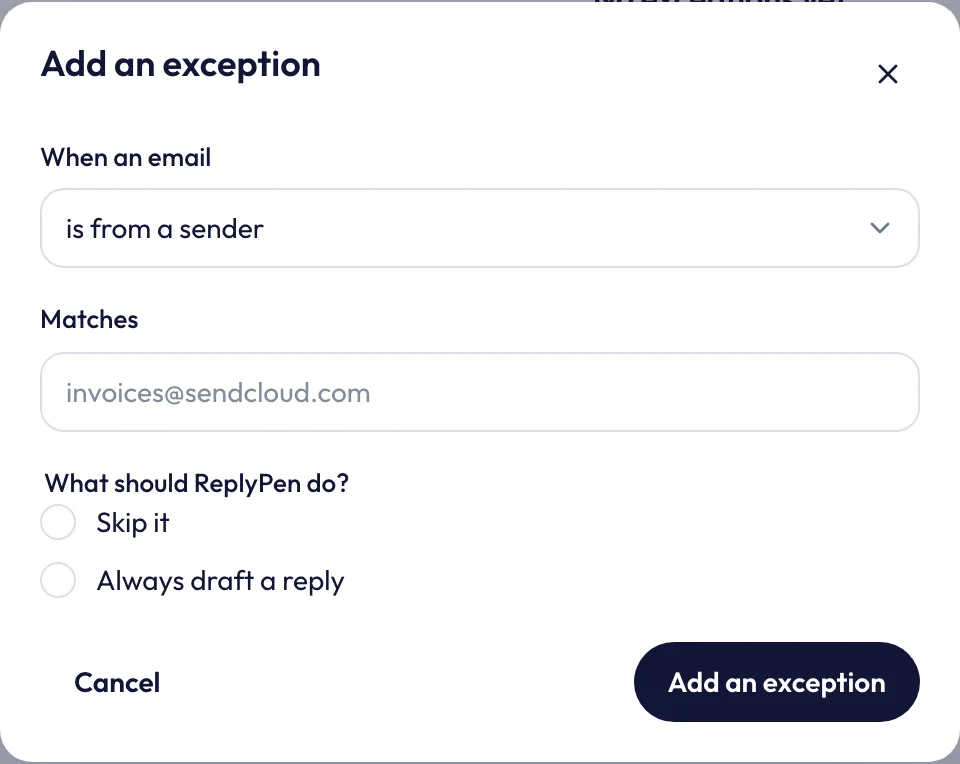
An exception for one sender.
- Go to Rules, tab Exceptions, and click Add an exception.
- Under When an email, pick is from a sender, is from a domain, has a subject containing or has text containing.
- Under Matches, type the address, domain or words.
- Under What should ReplyPen do?, pick Skip it or Always draft a reply, and save.
Each exception shows how many emails it matched this month, and whether you added it or ReplyPen suggested it. Use its menu to Edit or Delete it.
Which exceptions should I start with?
None. Add one when you notice a pattern. Common first ones: skip a supplier that sends updates the automatic skips miss; always draft for your biggest customers’ domain; always draft emails that mention “refund” or “complaint”.
What can an exception not match?
It matches what is in the email, not what ReplyPen knows about the person. “Existing customers” is not something it can match; their email domain is.