
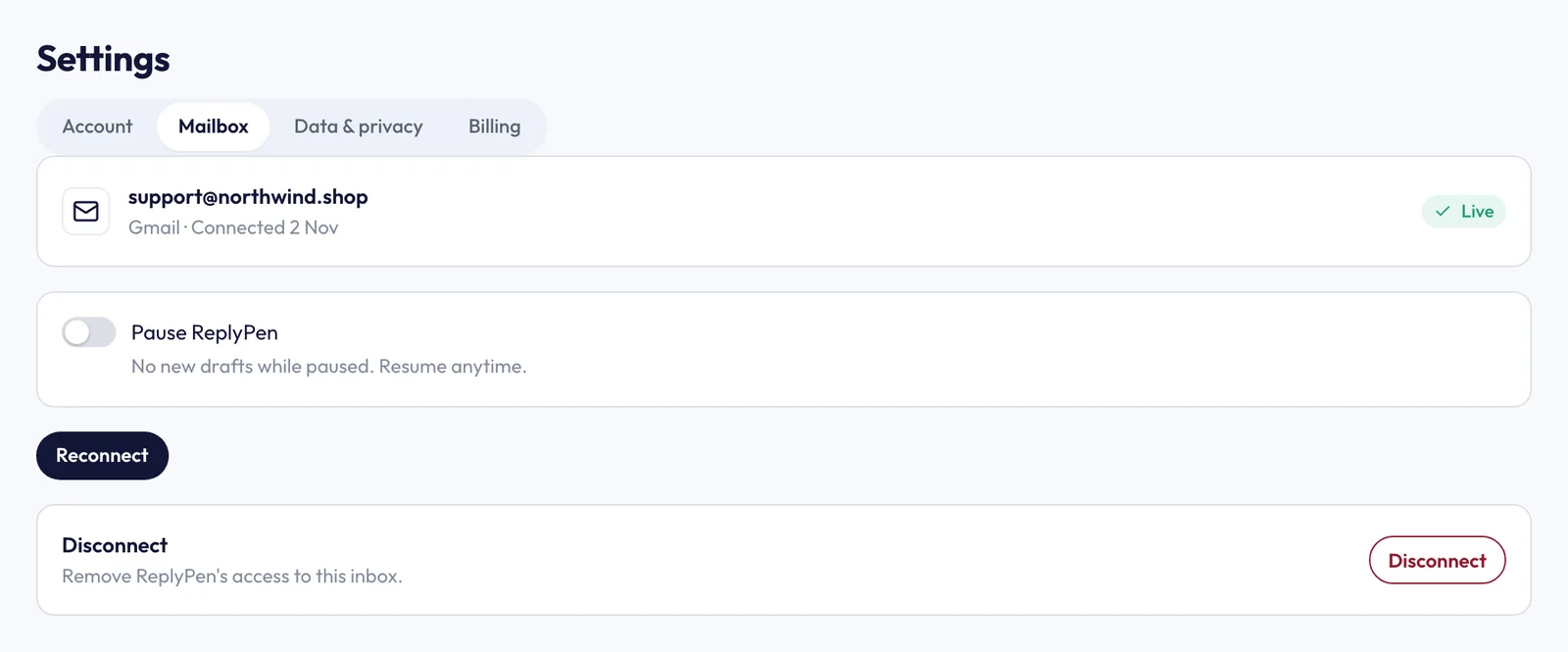
Settings, Mailbox.
Pause for a while
- Go to Settings, tab Mailbox.
- Switch on Pause ReplyPen. “No new drafts while paused. Resume anytime.”
While paused, the app shows “ReplyPen is paused.” with a Resume button, and the ReplyPen panel in Gmail or Outlook says Drafting is paused. Switch it off to go live again.
To stop drafts for only some emails, use Rules instead.
Reconnect when ReplyPen can’t read your inbox
If ReplyPen loses access to your inbox, the app shows “ReplyPen can’t read new emails” for your address, and the mailbox is marked Needs attention.
- Go to Settings, tab Mailbox, and click Reconnect.
- Sign in with the same email address as your connected inbox and allow access again (Google’s screens for Gmail, Microsoft’s for Outlook).
If you paused ReplyPen, it stays paused after you reconnect.
Disconnect your inbox
- Go to Settings, tab Mailbox, and click Disconnect.
- Confirm under Disconnect your inbox?
ReplyPen stops reading this inbox and drafting replies. Drafts already in Gmail or Outlook stay. To also remove your data, see export or delete your data.